Warning
This documentation is in active development. Content is being updated as feedback is reviewed. Your patience is appreciated.
Submit documentation feedback with the widget at the bottom-left of this window or by emailing [email protected].
Open a support ticket with the widget at the bottom-right or by emailing [email protected].
Install MillMage
The first step to using MillMage is downloading it and getting it installed on your computer.
See below for information on system requirements, where to download MillMage, and how to install MillMage on your preferred operating system. If you've already downloaded and installed MillMage, skip ahead to Adding Your Machine.
System Requirements
If you want to know whether your computer will run MillMage effectively, or are considering a computer to buy, the chart below shows recommendations as well as minimum hardware requirements for running MillMage.
| Recommended Setup (Heavy Designing & Multitasking) |
Practical Minimum (Smooth Workflow) |
Absolute Minimum (Will Run) |
|
|---|---|---|---|
| Operating System | Windows 10 or 11, macOS 13 or higher. 64-bit version of Windows is required. For Windows N edition, you'll need to install the Media Feature Pack |
||
| Processor (CPU) | Intel Core i5 / AMD Ryzen 5 or newer, Apple M-Series | Intel Core i3 / AMD Ryzen 3 | 64-bit Dual-Core (Intel Celeron or similar) |
| System Memory (RAM) | 16 GB Smooth multi-tasking with CAD, image editors, or other software |
8 GB Works for typical usage |
4 GB Minimum required for operating system, struggles with large files |
| Storage Type | ≥256 GB NVMe Solid State Drive (SSD) Fastest option for opening/importing/saving files |
Solid State Drive (SSD) | Traditional mechanical hard drive MillMage will run, but opening/importing/saving may be slow |
| Screen Resolution | 1920 x 1080 (1080P/FHD) or higher Larger workspace, with room for expanded toolbars and larger text/icons if desired |
1920 x 1080 (1080P/FHD) | 1280 x 1024 Works, but limited workspace and condensed/smaller UI can be frustrating |
| Free Storage Space | At least 450 mb free to install the software, plus additional space for files | ||
Download MillMage
To ensure you get the most recent version of MillMage, download MillMage directly from the Download / Trial page at MillMageSoftware.com. On this page you'll find links to download the current version of MillMage, as well as links to previous versions of the software and public beta versions.
When you've completed the download, you should see the file in your "Downloads" folder or a manually selected folder.
Installation Directions
Choose your operating system below for additional installation help.
Windows Installation
Windows Installation
Installation works the same way as most Windows software. Start the installer by double-clicking the file you downloaded from the MillMage website. Windows may ask if you trust us first.
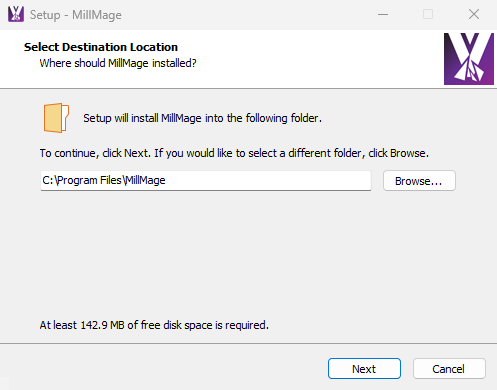
Click Next, then click Install to begin the installation process. When it completes, you'll see the following screen with options for installing drivers, viewing the change log, and launching MillMage.
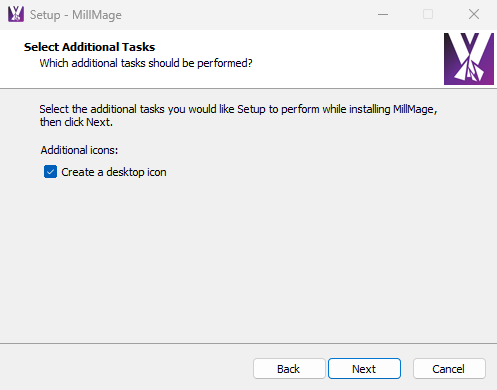
Start MillMage however you usually do to begin using the software.
macOS Installation
macOS Installation
Installing on M1 or newer Macs
To install MillMage on an ARM-based Mac (using an M1 chip or later), you must have Rosetta installed.
In most cases, Rosetta is automatically installed on ARM-based Macs, and manual installation is unnecessary. If Rosetta is not installed, you'll be prompted to install it when you attempt to open MillMage.
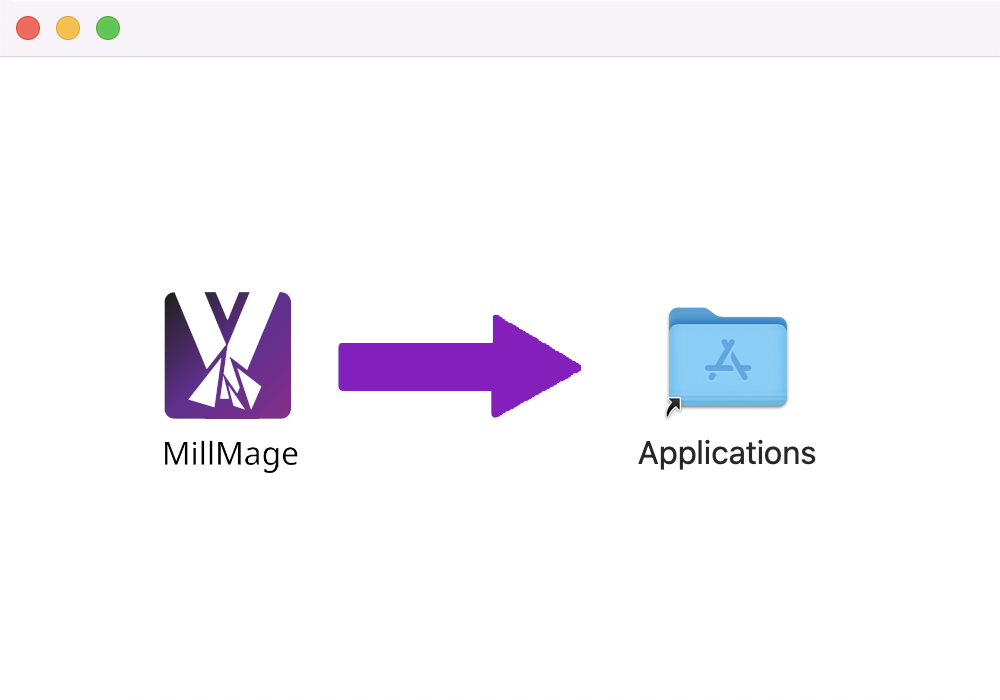
Installation works the same way as most macOS software. After downloading the DMG file, open the file and drag MillMage into your Applications folder.
Installing Drivers
If you have never installed MillMage on this computer before, you might need to install drivers. This is not necessary when updating an existing installation. Some controllers require the installation of a CH340 USB to serial driver. The latest version is available from the WCH website for Windows and macOS.
Consult your machine manufacturer for any driver install files required to communicate with your machine.
For more help using MillMage, please visit our forum to talk with MillMage staff and users, or email support.