Warning
This documentation is in active development. Content is being updated as feedback is reviewed. Your patience is appreciated.
Submit documentation feedback with the widget at the bottom-left of this window or by emailing [email protected].
Open a support ticket with the widget at the bottom-right or by emailing [email protected].
Z Block/Puck Probe
This guide explains the initial setup and use of a Z axis probe block to set the workpiece origin. Using a probe block isn't strictly necessary for basic CNC work – you can find and set your origin manually – but use of a probe block will provide more consistent and accurate results.
To follow this guide, you will need:
- A Z axis only probe block compatible with your CNC machine
- Calipers to measure the probe block (only for initial configuration)
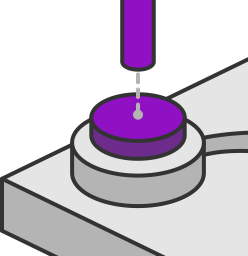
How a Probe Block Works
A probe block is a metal block with a wire to connect to the CNC router's controller and another wire (usually ending in a magnet) that attaches the tool. MillMage will move the tool toward the probe block until it touches, backs off, and then moves more slowly toward the block to touch it precisely.
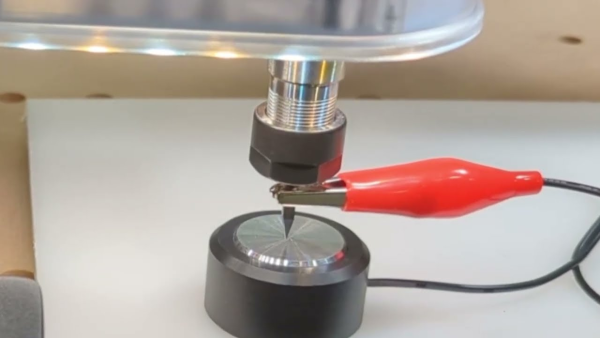
When the tool contacts the probe block, the electrical circuit is closed and a signal is sent to the controller to indicate that contact has been made. MillMage will automatically calculate the Z axis zero by using the Offset Z puck thickness value entered in the Probe Configuration window.
Define your probe block dimensions and motion parameters in the Probing Wizard. If you've already set up the Probe Block, skip ahead to Probing and Setting the Origin.
Defining a Probe Block
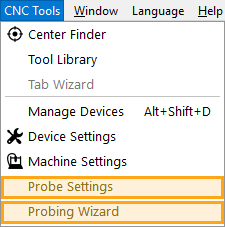
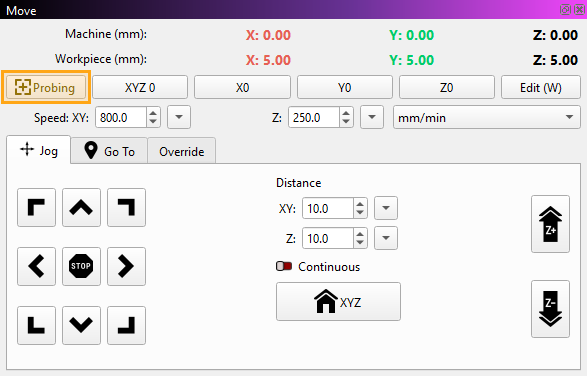
Open the Probe Configuration window to define the parameters of your probe block by selecting either:
- CNC Tools → Probe Settings
- CNC Tools → Probing Wizard → Manage Probe Configuration
- Move Tab → Probing → Manage Probe Configuration
CNC Tools Menu
Move Tab/Window
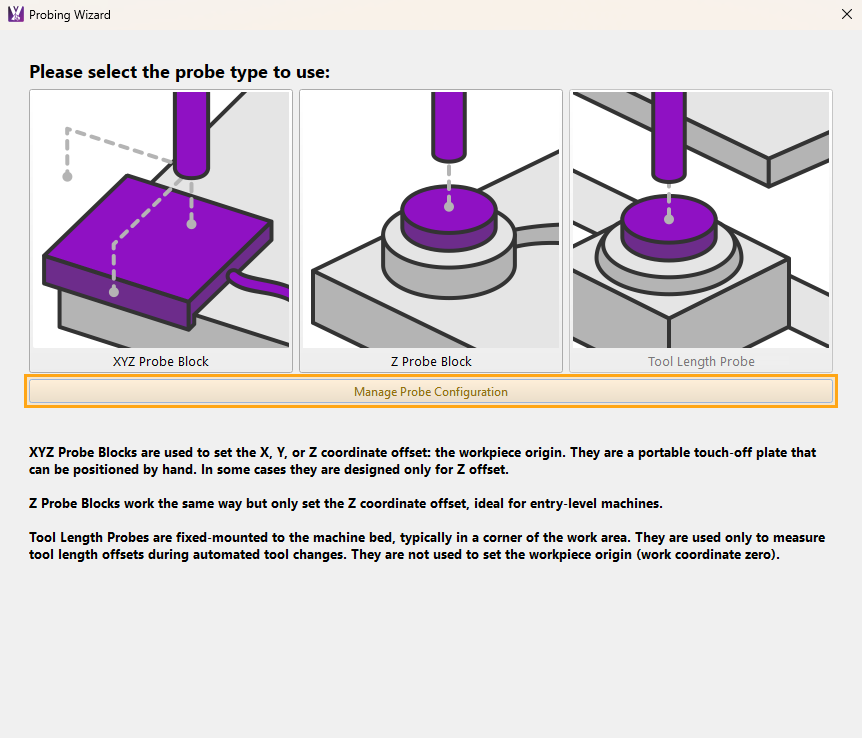
Update Settings
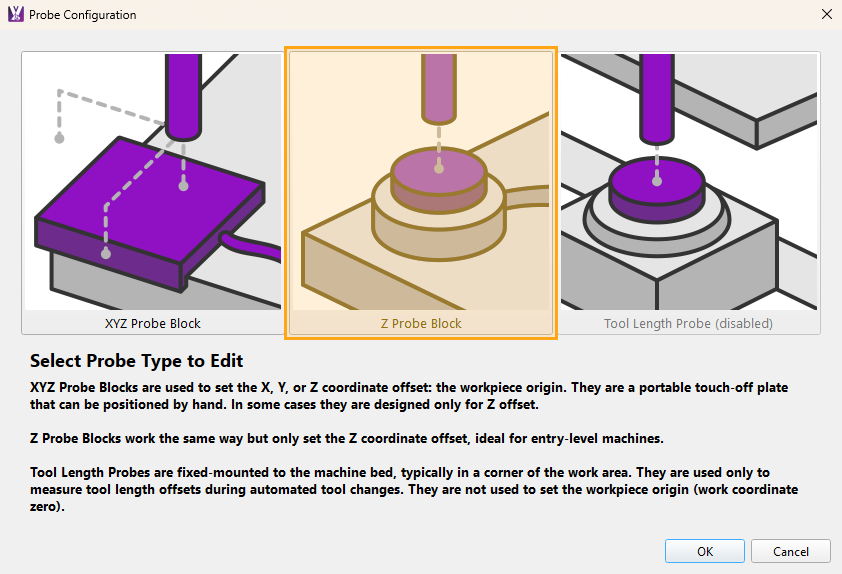
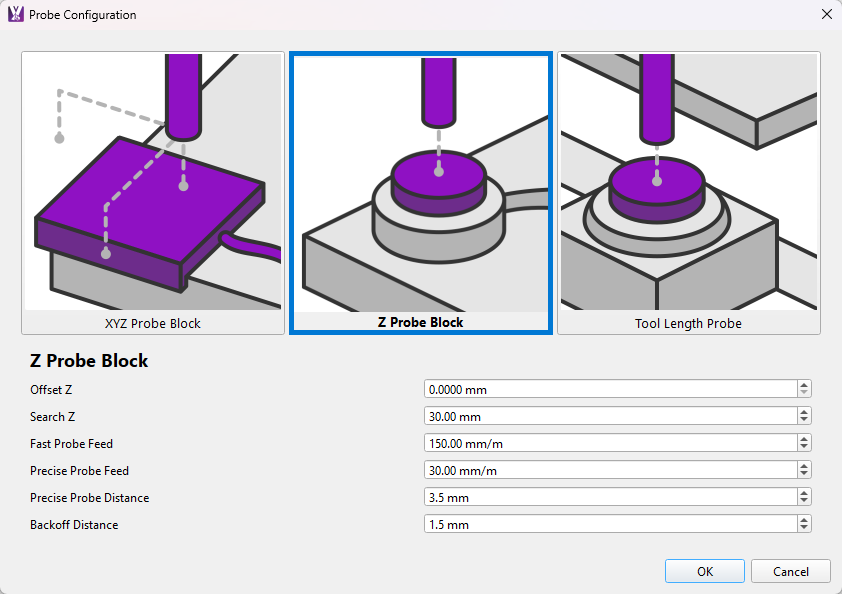
Select Z Probe Block to open the settings panel. These settings help MillMage understand the shape of your probing block, and how to approach the block for probing.
Define your Z axis probing puck by carefully measuring the thickness of your probing puck and updating MillMage with your puck dimensions in the Block/Puck settings panel. You will need:
- A Z axis probe block compatible with your CNC machine
- Calipers to measure the probe block thickness (only for initial configuration)
Click on each setting field in the image below to jump directly to information on that section, or scroll down for information on each option.
Offset Z
Use calipers to measure the block/puck thickness and enter the values into the Offset Z field.
Search Z
Enter the distance your tool will move after you manually position the tool over the probe block. The tool must be able to contact the probe block within these defined values you set here in order to successfully probe.
If the tool does not make contact within this distance, an alarm will trigger on your controller, typically Alarm 9.
Probing Recommendations
Faster probe speeds may lead to damaged tooling, probes, and may lead to CNC operator injuries.
Start probing slowly (150 mm/min or less) to ensure that accurate contact is made. Pay attention during the probing process to make sure that your machine responds instantaneously on contact and that deflection does not occur. If long probing times are encountered, faster probing speeds can be explored in 50 mm/min increments.
Fast Probe Feed and Precise Probe Feed
- Fast Probe Feed is the initial speed at which the tool searches for the probe block, set to 150 mm/min by default, through the length of the Search Z Distance.
- Precise Probe Feed is a lower speed at which the tool will search for the probe block after initial contact. This movement is set to 30 mm/min by default to improve accuracy and travels the smaller Backoff Distance.
Precise Probe Distance and Backoff Distance
- Precise probe distance is the distance the tool will slowly move towards the probing contact point, set to 3.5 mm by default.
- Backoff distance is the length of movement the tool will slowly back away from the probing contact point, set to 1.5 mm by default.
Probing and Setting the Origin
Probing Checklist
1. Position Probe Block
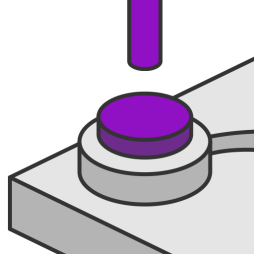
Place the Z Probe Block on the surface of the workpiece if your Project Z Axis Zero is set to top or on the surface of the wasteboard/workarea if set to bottom, ensuring that the probe block is laying flat on the material.
Typically, the probe block is plugged into the CNC router's control board, with a second wire attaching to the tool with a magnet or a clip. More advanced probe blocks may have an LED light to indicate contact.
Verify that the probe block is connected according to manufacturer directions.
2. Open the Probing Wizard
Open the Probing Wizard by selecting CNC Tools → Probing Wizard, or by clicking the Probing button in the Move Window.
Select Z Probe Block.
Seeing an "Unconfigured Probe Type" Warning?
Getting an error message with the following message?
Your Probe block is not yet configured. Please configure it before proceeding.
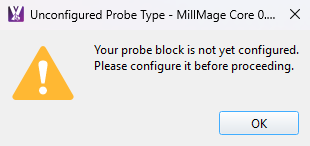
Follow the steps here to set up your probing block: Update Settings
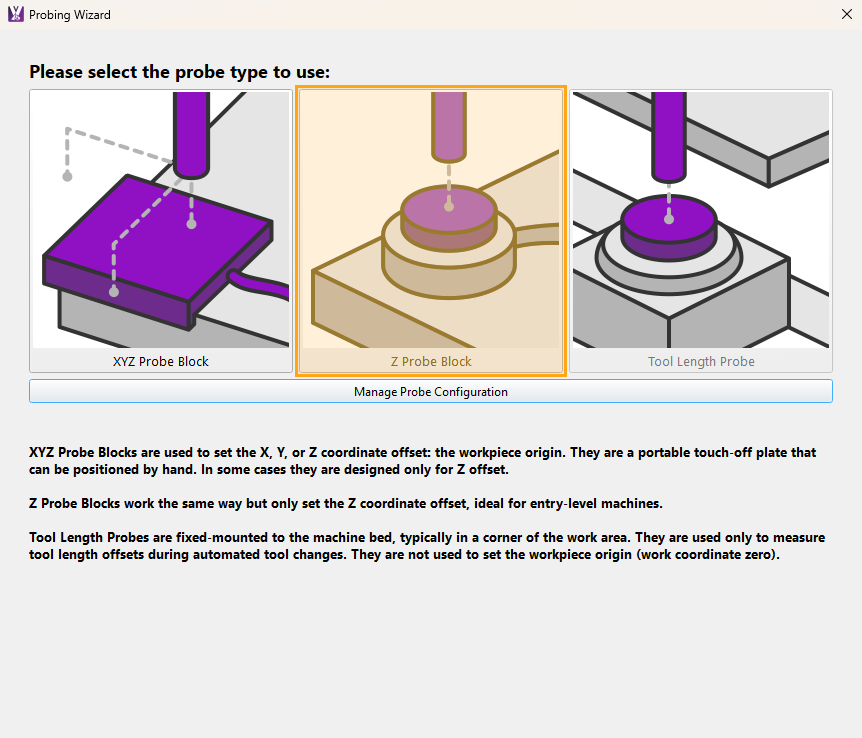
3. Position Tool Over Probe Block
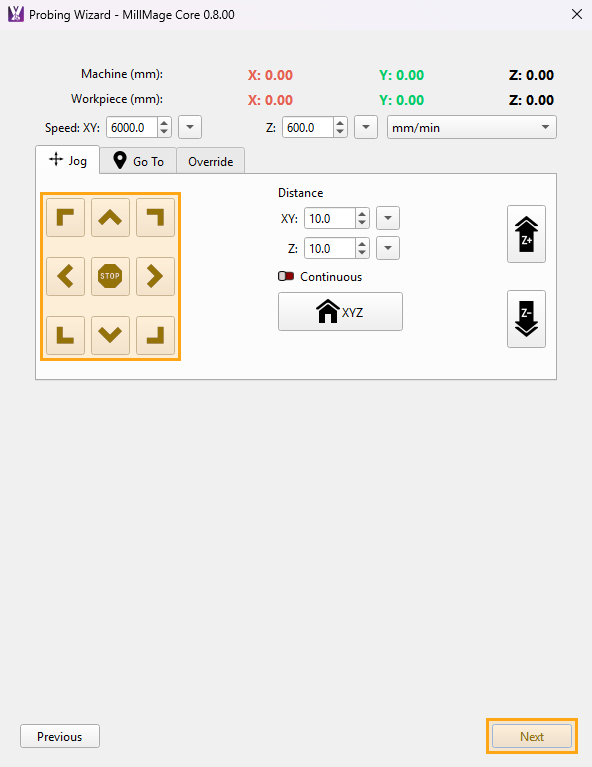
Use the jogging controls to position your tool over the Probe Block, ideally an inch or a centimeter above and near each face of the probe block. The tip of the tool must be within your user-set search distance — set by default to 30 mm (~1.18 in). View the Move Window page for more information on the jogging controls.
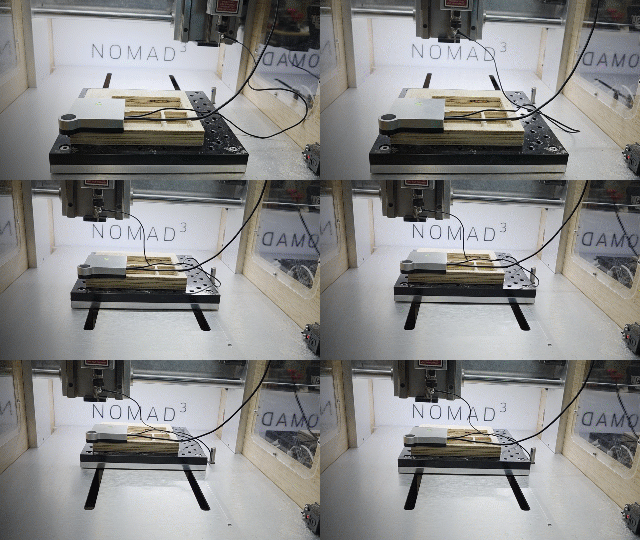
The tool should be over the surface of the probe block, and within the Search Z range of the surface.
If necessary, you can adjust the search distances on the next screen.
Select Next to continue.
4. Review Values
Check and verify the current probing settings:
- Search Z — the distance the tip of the tool will travel along that axis to find the probing puck — move the tool closer to puck or adjust the distance before proceeding if needed
- Fast Probe Speed — faster than Precise Probe Speed
- Precise Probe Speed — slower than Fast Probe Speed
5. Verify Probing Block Positioning and Setup
Make sure your Probe Block is connected to your controller correctly, that the probe block placement is snug and in position.
Probing Recommendations
Faster probe speeds may lead to damaged tooling, probes, and may lead to CNC operator injuries.
Start probing slowly (150 mm/min or less) to ensure that accurate contact is made. Pay attention during the probing process to make sure that your machine responds instantaneously on contact and that deflection does not occur. If long probing times are encountered, faster probing speeds can be explored in 50 mm/min increments.
6. Execute Probing
Click on Execute on Z to probe the Z axis.
MillMage will execute the surface reference probing routine and set the Z axis zero point.
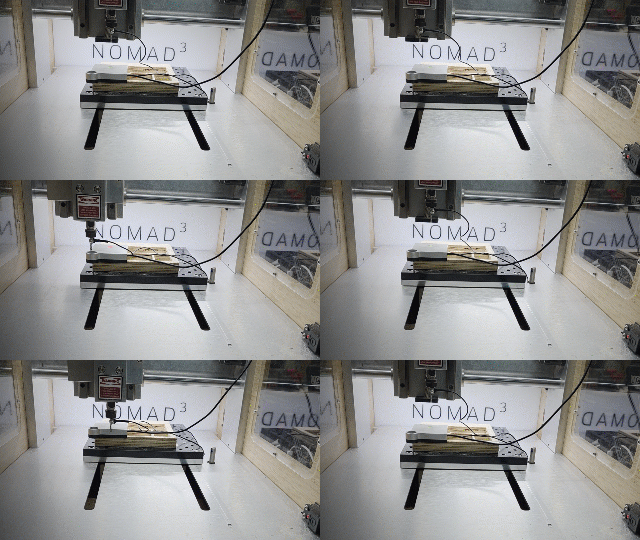
7. Probing Complete
Select Next to close the Probe Wizard. Your Z axis zero is now set. Jog the tool to the X and Y axis zero point and follow the manual zeroing guide here before sending Operations to your CNC machine through Control Mode.
CNC machines with a Tool Length Probe will need to run the Tool Length Probing routine next.
Troubleshooting
Alerts
Unconfigured Probe Type
Solution:
Configure Probe
The type of probe selected has not been setup. Follow the instructions here to Setup a Z axis probe/puck.
Z Axis Probing Incomplete
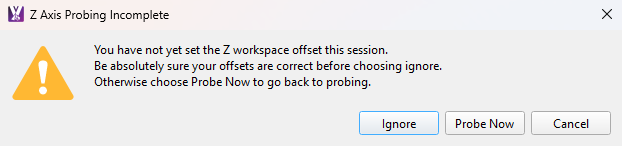
Probe Z Axis
The Z axis has not yet been probed. Follow the instructions here to probe the Z axis.
Alarms
ALARM 4: Probe Fail
Console Message:
Probe is not in the expected initial state before starting probe cycle when G38.2 and G38.3 is not triggered and G38.4 and G38.5 is triggered.
Hit [Stop] button to clear
MillMage Message:
Probe sequence cannot continue as device is in error or alarm state.
Please exit this window and clear the alarm or error first.
Probe is not in the expected initial state before starting probe cycle when G38.2 and G38.3 is not triggered and G38.4 and G38.5 is triggered.
More Info: G38 Commands
Note: The GCode commands listed below are for informative purposes only. The Probing Wizard will automatically setup the probing GCodes needed based on the values entered during configuration.
| GCode | Function |
|---|---|
| G38.2 | Probe towards the target and stops on contact, signal an error if it reaches the target position without triggering the probe |
| G38.3 | Probe towards the target and stops on contact, but do not signal an error if it fails to trigger the probe |
| G38.4 | Probe away from the target and stops on contact break, signal an error if it reaches the target position without triggering the probe |
| G38.5 | Probe away the target and stops on contact break, but do not signal an error if it fails to trigger the probe |
Potential Solutions:
Tool is Contacting Probe Plate: Jog Tool Off of Plate
- Press the Stop button in the Job Control Window or send the
$Xcommand in the Console to clear the alarm. - Stop your spindle if running or power off your router.
- Jog the tool away from the top surface, staying within the search distance of 30 mm (1.8 in) by default of the probe contact area.
- Open the Probe Wizard, select your probe type, and complete the probing process.
Reseat Probe Connection
- Press the Stop button in the Job Control Window or send the
$Xcommand in the Console to clear the alarm. - Stop your spindle if running or power off your router.
- Unplug the probe and plug back in. Examine the wires for potential damage like a short or a lose connection.
- Remove and reattach the probe wire lead to the bit.
- Jog the tool close to the top surface, staying within the search distance of 30 mm (1.8 in) by default of the probe contact area.
- Open the Probe Wizard, select your probe type, and complete the probing process.
ALARM 5: Probe Fail
Typically encountered when the tool is farther away from the probing plate than commanded, or when the probe is not connected to the controller.
Console Message:
Probe fail. Probe did not contact the workpiece within the programmed travel for G38.2 and G38.4.
Hit [Stop] button to clear
MillMage Message:
Probe sequence cannot continue as device is in error or alarm state.
Please exit this window and clear the alarm or error first.
Probe fail. Probe did not contact the workpiece within the programed travel for G38.2 and G38.4.
More Info: G38 Commands
Note: The GCode commands listed below are for informative purposes only. The Probing Wizard will automatically setup the probing GCodes needed based on the values entered during configuration.
| GCode | Function |
|---|---|
| G38.2 | Probe towards the target and stops on contact, signal an error if it reaches the target position without triggering the probe |
| G38.3 | Probe towards the target and stops on contact, but do not signal an error if it fails to trigger the probe |
| G38.4 | Probe away from the target and stops on contact break, signal an error if it reaches the target position without triggering the probe |
| G38.5 | Probe away the target and stops on contact break, but do not signal an error if it fails to trigger the probe |
Potential Solutions:
Too Far Away: Jog Tool Closer
- Press the Stop button in the Job Control Window or send the
$Xcommand in the Console to clear the alarm. - Stop your spindle if running or power off your router.
- Jog the tool closer to the top surface, staying within the search distance of 30 mm (1.8 in) by default of the probe contact area.
- Open the Probe Wizard, select your probe type, and complete the probing process.
Probe Disconnected: Verify Probe Connection
- Press the Stop button in the Job Control Window or send the
$Xcommand in the Console to clear the alarm. - Stop your spindle if running or power off your router.
- Unplug the probe and plug back in. Examine the wires for potential damage like a cut/break or a lose connection.
- Remove and reattach the probe wire lead to the bit.
- Jog the tool close to the top surface, staying within the search distance of 30 mm (1.8 in) by default of the probe contact area.
- Open the Probe Wizard, select your probe type, and complete the probing process.
Tool Too Short: Reseat Tool in Collet
- Press the Stop button in the Job Control Window or send the
$Xcommand in the Console to clear the alarm. - Stop your spindle if running or power off your router.
- Loosen and remove the collet from the spindle or router. Extend the tool out towards the bottom of the collet to increase the tool length. Reinstall the collet following your device manufacturer recommendations.
- Jog the tool closer to the top surface, staying within the search distance of 30 mm (1.8 in) by default of the probe contact area.
- Open the Probe Wizard, select your probe type, and complete the probing process.
Related Topics
For more help using MillMage, please visit our forum to talk with MillMage staff and users, or email support.