Warning
This documentation is in active development. Content is being updated as feedback is reviewed. Your patience is appreciated.
Submit documentation feedback with the widget at the bottom-left of this window or by emailing [email protected].
Open a support ticket with the widget at the bottom-right or by emailing [email protected].
Shared Settings for Multiple Users
For schools, makerspaces, businesses, and other users who may need to configure multiple computers to share Devices, Settings, Operation Libraries, and other configuration, we have some tools available to help you.
Licensing
To set up MillMage licenses from the command line, see the directions for System Locked License Setup
Initial Configuration
The easiest way to configure multiple computers is with MillMage's User Bundles, which are described further in our guide to Migrating Between Computers.
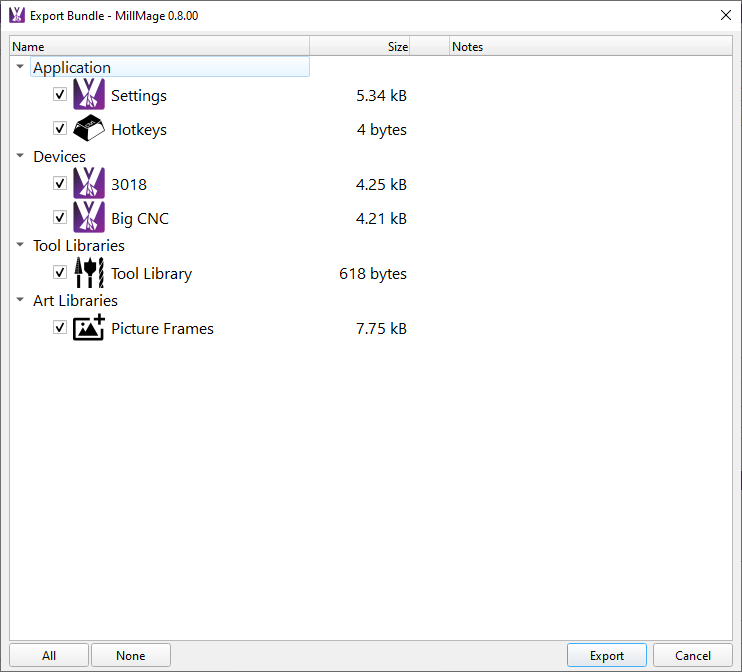
User Bundles can contain any or all of the following:
To share your settings:
- Make MillMage is configured the way you want on your first computer.
- Create a User Bundle by going to File → Bundles → Export Bundle.
- Save your User Bundle somewhere accessible to all the other computers you want to configure. The exact way you do this will depend on your setup, but a few possibilities:
- If you have user profiles managed by your IT department, they may be able to place the
.mmzipfile somewhere accessible (such as the desktop) for all users. - Save the file to a network drive. If you're in a school or other environment with an IT department, they may be able to help you set one up if you don't currently have one.
- Save the file to a shared folder in a cloud storage service like Google Drive, OneDrive, or Dropbox.
- Use shared folders through your operating system or a service like Syncthing.
- If you don't have any network-based sharing options, save to a USB drive or similar.
- If you have user profiles managed by your IT department, they may be able to place the
- On each other computer you want to configure, open MillMage and load the User Bundle by doing one of the following (or have users do this):
- Go to File → Bundles → Import Bundle and select the
.mmzipfile you created. - Drag the
.mmzipfile into the MillMage window.
- Go to File → Bundles → Import Bundle and select the
- Select the components of the bundle you want to use and click Import.
If you keep the User Bundle available for users, they can repeat the import process if they need to restore their configuration.
defaultprefs.ini
In earlier forum posts, there are references to using a defaultprefs.ini to set default LightBurn/MillMage settings each time the program starts up. At the present time, this is not currently recommended as it may not work reliably.
Ongoing Updates
While you probably won't be changing your Device List very often, you may want to update Operation Libraries, Tool Libraries or Art Libraries more often and share those changes with users.
Libraries are reloaded every time MillMage starts up, so you can have each computer load a Material Library, Tool Library, or Art Library from a shared file, and at every startup, the most recent version will be loaded.
Operations Library
Operations Libraries make it easy to store, look up, and apply Operations. You can use Operations Libraries to share your Operations between computers. Once an Operations Library is loaded, reusing MillMage Operations is as easy as opening the Operations Library Window, selecting the correct entry, and choosing Apply.
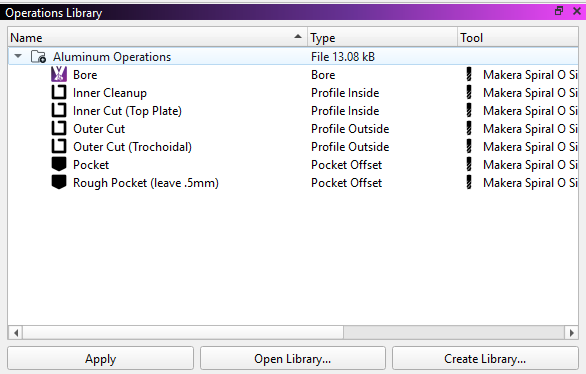
- Use Create Library to create a new library. You can save it somewhere shared, although you may want to instead share a copy of this file to prevent other users from accidentally making unexpected changes to your settings.
- Have users on other computers use Open Library to load your shared Operations Library file from a shared file.
Tool Library
The Tool Library is where you create and save entries containing information on the tools you'll use with your CNC. You can share your tool configurations using Tool Libraries in a very similar way to sharing your operations.
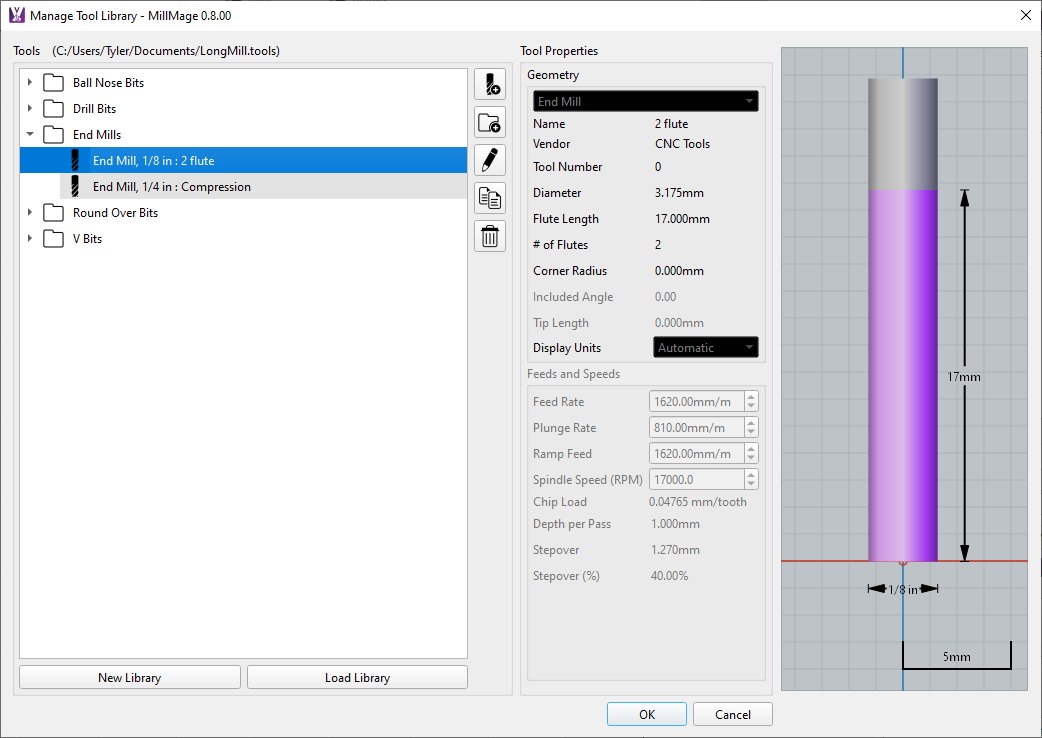
- Use New Library to create a new library. You can save it somewhere shared, although you may want to instead share a copy of this file to prevent other users from accidentally making unexpected chagnes to your settings.
- Have users on other computers use Load Library to load your shared Tool Library file from a shared file.
Art Library
For art resources you want to share, consider using a shared Art Library. This can be useful for shared artwork, but also for creating placeholders representing engraving blanks you use, various cutting templates, or material sizes.
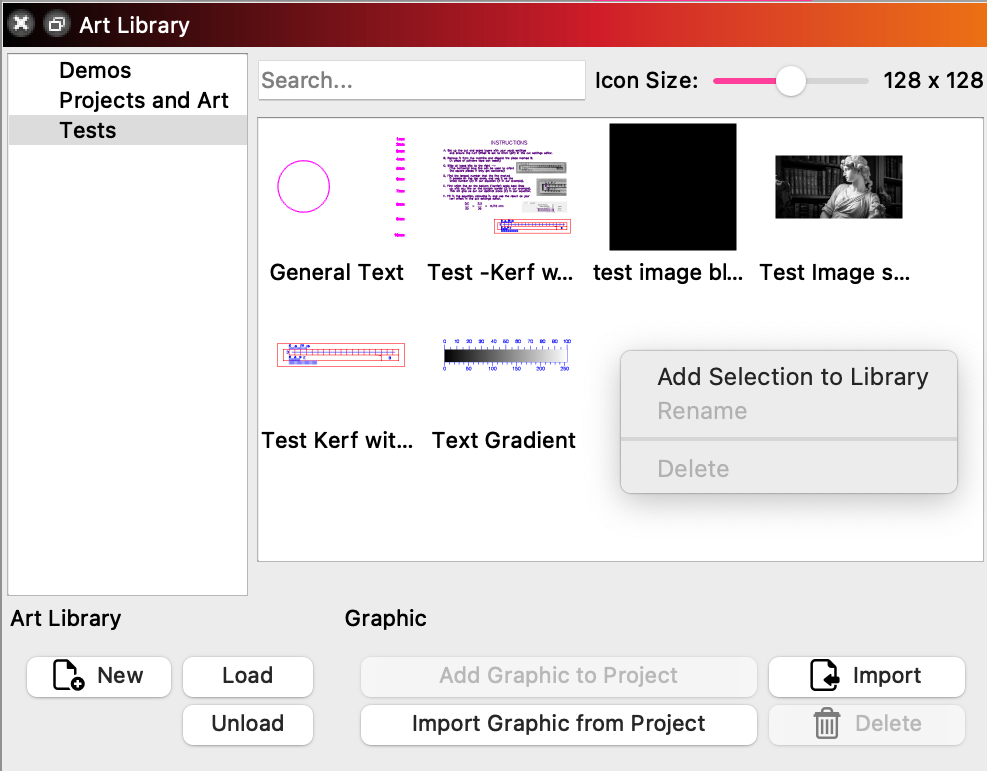
- To share an Art Library, find the
.lbartfile for the Art Library you want to share and copy it to a shared location. - Users can load an Art Library by clicking the Load button in the bottom of the Art Library window and selecting your shared
.lbartfile.
Related Topics
For more help using MillMage, please visit our forum to talk with MillMage staff and users, or email support.